---
title: "Run OpenChamber on a remote server"
description: "Run OpenChamber, the web workspace for OpenCode, on an always-on exe.dev VM. Use it from any browser or phone behind exe.dev login, with no API keys."
url: https://exe-staging.dev/deploy/openchamber
category: "AI agents"
updated: 2026-11-07
---
# Run OpenChamber on a remote server
The OpenCode workbench on an always-on VM, open from any browser or phone.
- **Software:** OpenChamber (https://openchamber.dev/)
- **Source:** https://github.com/openchamber/openchamber
- **License:** MIT
- **Time:** 10 minutes
- **Example VM name:** `my-openchamber` (yours will differ; on the VM, `hostname` prints it)
- **Machine-readable:** https://exe-staging.dev/deploy/openchamber/manifest.json
## What you get
- OpenChamber 2.6.1 running as a service on port 3000, back after a reboot
- OpenCode connected to Claude, GPT and open models through exe.dev's LLM integration, with no API key to paste
- A random UI password in `~/.config/openchamber/ui-password`, readable only by you
- A Git project at `~/project` and a setup-check session that answered `OK`
- OpenChamber's web app at port 3000, behind exe.dev login and the password
Running on the VM:
- **OpenChamber 2.6**: @openchamber/web from npm on Node.js 24, as a systemd user service, port 3000, data in `~/.config/openchamber`
- **OpenCode 2**: started and managed by OpenChamber; connected to exe.dev's LLM integration, data in `~/.local/share/opencode (sessions, and worktrees under worktree/)`
- **Your project**, data in `~/project`
How it is reached:
- https://my-openchamber.exe.xyz:3000/ (private): OpenChamber in your laptop's or phone's browser, behind exe.dev login and OpenChamber's password
- ssh my-openchamber.exe.xyz (private): your terminal, for the password and upkeep
## Deploy with Shelley
Open https://exe-staging.dev/new?prompt=Set%20up%20OpenChamber%20on%20this%20VM%20by%20following%20the%20exe.dev%20recipe%20at%20https%3A%2F%2Fexe-staging.dev%2Fdeploy%2Fopenchamber.md%20from%20top%20to%20bottom.%0A%0AThe%20recipe%27s%20example%20VM%20name%20is%20my-openchamber.%20This%20VM%27s%20name%20is%20the%20output%20of%20%60hostname%60%3A%20use%20it%20wherever%20the%20recipe%20writes%20my-openchamber.%20Skip%20the%20step%20that%20creates%20the%20VM%3B%20you%20are%20on%20it.%0A%0AYou%20are%20done%20when%20all%20of%20these%20are%20true.%20Check%20each%20one%20yourself%3A%0A-%20OpenChamber%202.6.1%20running%20as%20a%20service%20on%20port%203000%2C%20back%20after%20a%20reboot%0A-%20OpenCode%20connected%20to%20Claude%2C%20GPT%20and%20open%20models%20through%20exe.dev%27s%20LLM%20integration%2C%20with%20no%20API%20key%20to%20paste%0A-%20A%20random%20UI%20password%20in%20%60~%2F.config%2Fopenchamber%2Fui-password%60%2C%20readable%20only%20by%20you%0A-%20A%20Git%20project%20at%20%60~%2Fproject%60%20and%20a%20setup-check%20session%20that%20answered%20%60OK%60%0A-%20OpenChamber%27s%20web%20app%20at%20port%203000%2C%20behind%20exe.dev%20login%20and%20the%20password%0A%0ARun%20the%20VM-side%20commands%20in%20%22Install%20by%20hand%22%20only%2C%20from%20%22Install%0AOpenChamber%22%20on.%20If%20%60~%2F.config%2Fopencode%2Fopencode.json%60%20holds%20more%20than%0Aexe.dev%27s%20placeholder%20%28%60%24schema%60%20and%20%60autoupdate%60%29%2C%20add%20the%20%60model%60%20and%0A%60providers%60%20settings%20to%20it%20instead%20of%20replacing%20it.%20Verify%20that%0A%60systemctl%20--user%20is-active%20openchamber%60%20says%20active%2C%20that%20%60ss%20-ltn%60%0Ashows%20%600.0.0.0%3A3000%60%2C%20that%20%60curl%20-s%20-o%20%2Fdev%2Fnull%20-w%20%27%25%7Bhttp_code%7D%27%0Alocalhost%3A3000%2Fapi%2Fconfig%60%20prints%20%60401%60%20%28the%20password%20is%20on%29%2C%20and%20that%0Athe%20setup%20check%20prints%20%60OK%60.%20Never%20print%20the%20UI%20password%20in%20your%0Amessages.%20Skip%20the%20backup%2C%20update%20and%20troubleshooting%20sections%20and%20the%0AFAQ.%20Finish%20by%20giving%20the%20owner%20the%20browser%20URL%20and%20the%0A%60ssh%20...%20cat%20.config%2Fopenchamber%2Fui-password%60%20command%20from%20%22Open%0AOpenChamber%22%2C%20with%20this%20VM%27s%20name%2C%20and%20tell%20them%20to%20add%20%60~%2Fproject%60%20as%0Aa%20project%20and%20then%20follow%20%22Add%20your%20phone%22.%0A%0AFinish%20with%20the%20URLs%20I%20should%20open.%0A to create a VM whose agent, Shelley, follows this recipe. From a terminal:
```sh
curl -fsSL https://exe-staging.dev/deploy/openchamber/prompt.txt | ssh exe.dev new --prompt=/dev/stdin
```
Or follow the steps below by hand.
[OpenChamber](https://openchamber.dev/) is an open-source workspace for
[OpenCode](/deploy/opencode): a web, desktop and phone app where you start
agent sessions, run them side by side in Git worktrees, review the diffs,
and open the terminal. Its server mode is meant for a machine that stays on.
Make that machine an exe.dev VM and the agents keep working when your laptop
sleeps, while any browser reaches them over HTTPS behind exe.dev's login. No
tunnel needed.
OpenCode comes preinstalled on exe.dev and uses its
[LLM integration](/docs/integrations-llm) for Claude, GPT and open-weight
models: no API keys to paste, and model usage billed to your exe.dev
account.
## Install
Deploy installs OpenChamber, runs it as a service with a password, and
checks that a model answers. To do it yourself:
Install by hand
On your computer, create a VM and connect. Pick any free name; if you
already have a VM, skip the first command and use its name:
```bash
ssh exe.dev new --name=my-openchamber
ssh my-openchamber.exe.xyz
```
### Install OpenChamber
On the VM, update OpenCode, install Node.js 24 from NodeSource (OpenChamber
needs 24.14 or newer; the VM's own is older), and install OpenChamber from
npm. This is what OpenChamber's
[install script](https://github.com/openchamber/openchamber/blob/main/scripts/install.sh)
does, with the version pinned. Global npm packages go in `~/.local`, so
`openchamber update` needs no sudo:
```bash
sudo exeuntu update opencode
curl -fsSL https://deb.nodesource.com/setup_24.x | sudo -E bash -
sudo apt-get install -y nodejs
npm config set prefix ~/.local
npm install -g @openchamber/web@2.6.1
export PATH="$HOME/.local/bin:$PATH"
openchamber --version
```
It prints `2.6.1`. npm warns that `node-pty` has install scripts it didn't
run; that's fine, since the terminal uses the prebuilt copy that ships with
it.
### Connect OpenCode to exe.dev's models
Point OpenCode's Anthropic, OpenAI and Fireworks providers at exe.dev's LLM
gateway, the same settings as on the [OpenCode page](/deploy/opencode).
OpenChamber starts OpenCode itself, and OpenCode reads this file:
```bash
mkdir -p ~/.config/opencode
cat > ~/.config/opencode/opencode.json <<'EOF'
{
"$schema": "https://opencode.ai/config.json",
"model": "anthropic/claude-sonnet-5-5",
"providers": {
"anthropic": { "settings": { "baseURL": "https://llm.int.exe.xyz/anthropic/v1" } },
"openai": { "settings": { "baseURL": "https://llm.int.exe.xyz/openai/v1" } },
"fireworks-ai": { "settings": { "baseURL": "https://llm.int.exe.xyz/fireworks/inference/v1" } }
}
}
EOF
```
### Run it as a service
Give OpenChamber a random password, in a file only you can read. Then
install its own startup service: a systemd user service that listens on
port 3000, where exe.dev's [HTTPS proxy](/docs/proxy) can reach it, and
starts on every boot:
```bash
mkdir -p ~/.config/openchamber
install -m 600 /dev/null ~/.config/openchamber/ui-password
openssl rand -hex 12 > ~/.config/openchamber/ui-password
OPENCHAMBER_UI_PASSWORD="$(cat ~/.config/openchamber/ui-password)" \
openchamber startup enable --port 3000 --host 0.0.0.0 --no-env-snapshot
```
exe.dev VMs keep user services running without a login, and
`--no-env-snapshot` keeps your shell's variables out of the service. The
service keeps its own copy of the password in
`~/.config/openchamber/startup.env`. Check it:
```bash
sleep 5
systemctl --user is-active openchamber
ss -ltn | grep ':3000'
curl -s -o /dev/null -w '%{http_code}\n' localhost:3000/api/config
```
Expect `active`, a line with `0.0.0.0:3000`, and `401`: the API won't
answer without the password.
### Add a project and check
Make a project folder. It's a Git repository, so you can review and undo
whatever the agents change. Then run a one-line session through
OpenChamber:
```bash
git init ~/project
id=$(openchamber session create --dir ~/project --title "Setup check" --json | jq -r .sessionId)
openchamber session send --session "$id" --dir ~/project \
--model anthropic/claude-haiku-5-5 --prompt "Reply with exactly: OK" \
--wait --last-assistant
```
The last line it prints is `OK`. The `openchamber` command on the VM talks
to the server directly, without the password.
## Open OpenChamber
Port 3000 is private: only people with access to the VM get past exe.dev's
login, and OpenChamber asks for its password on top. On your computer,
print the password:
```bash
ssh my-openchamber.exe.xyz cat .config/openchamber/ui-password
```
Open `https://my-openchamber.exe.xyz:3000/` and log in to exe.dev.
OpenChamber shows **Unlock OpenChamber**. Enter the password, tick **Trust
this device** so it remembers this browser for a week, and unlock.
Add your project: choose the folder icon (**Add project**) at the top of
the sidebar, pick `project`, and **Add**. Then type a task into the box:
> Create index.html: a one-page site for a bakery that sells only sourdough. Keep it short.
The answer streams in as the agent works in `~/project` on the VM, and the
session panel shows the files it changed and what the turn cost. The
terminal button on the right opens a shell on the VM in the same tab.
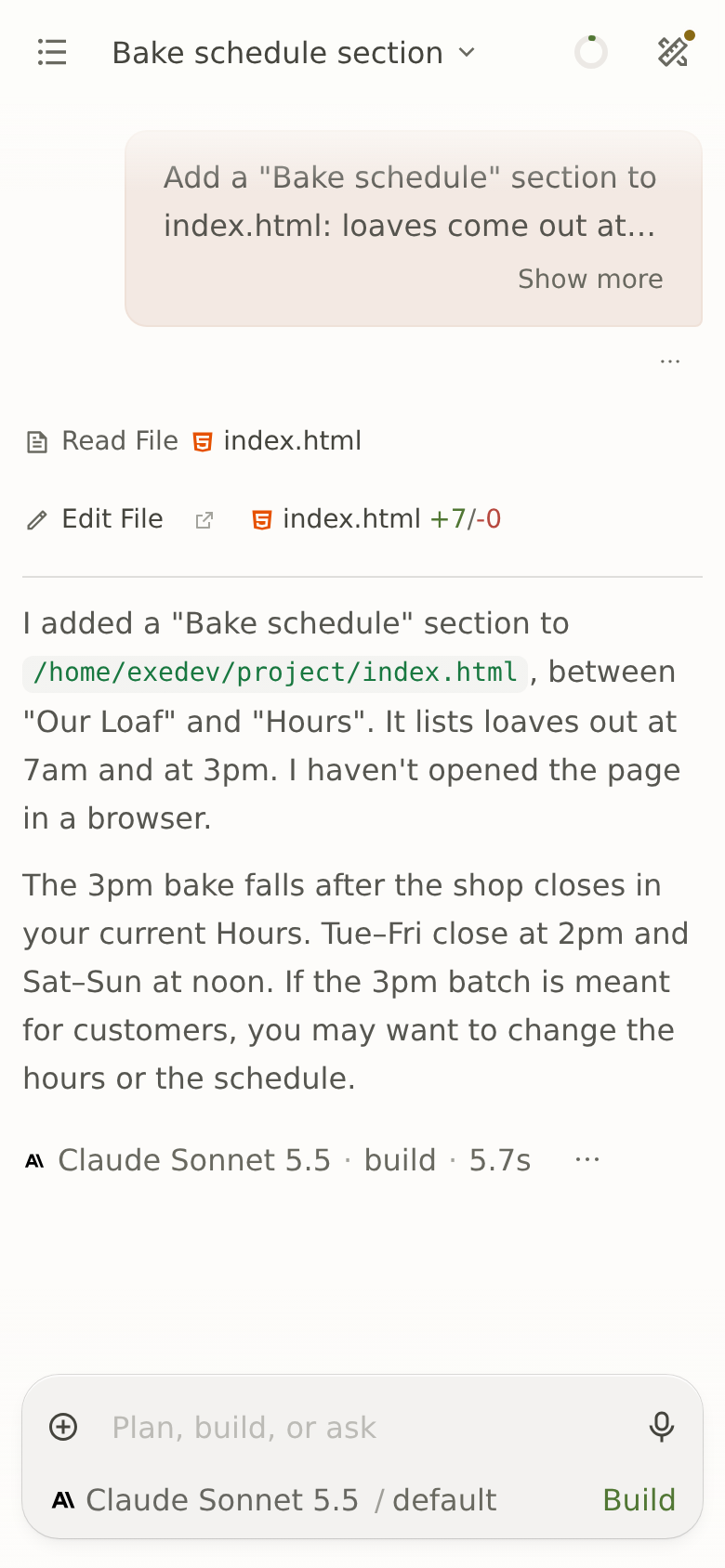
## Add your phone
On your phone, open `https://my-openchamber.exe.xyz:3000/`, log in to
exe.dev with the same account, and unlock with the password. Use your
browser's **Add to Home Screen** to open it like an app.
A finished session on a phone. The agent ran on the VM; the phone only steered it.
Start a session, lock your phone, and check back later: the work carries on
without you. A few things worth knowing:
- **Pick a model** under the message box. Claude, GPT and Fireworks' open
models (Kimi, GLM, DeepSeek) all run through exe.dev, and **Multi-run**
gives one task to up to five of them at once, each in its own worktree.
Models under `opencode/` are OpenCode's own and don't go through exe.dev.
- **Run sessions side by side**: choose **New worktree…** or **Quick
worktree** in the branch menu above the message box. Worktrees live under
`~/.local/share/opencode/worktree/` on the VM's persistent disk. See
[Worktree Sessions](https://docs.openchamber.dev/worktrees/).
- **Let it keep going**: **Session Goals** keep an agent working toward a
finish line, and scheduled tasks run a prompt daily or on a cron
schedule. Both run on the VM, so they don't need your laptop.
- **Preview what it builds**: ask the agent to serve the app on
`0.0.0.0:8000`, then open `https://my-openchamber.exe.xyz/`. It's private
until you [share it](/docs/sharing). OpenChamber's built-in browser panel
only reaches the VM's dev servers from its desktop app.
> [!WARNING]
> Anyone with the password who gets past exe.dev's login can run any
> command on the VM. Keep port 3000 private, and only share the VM with
> people you'd give your SSH key to.
## Bring your repositories
[Connect a GitHub repo](/docs/integrations-github) to the VM, then clone it
in OpenChamber's terminal, or over SSH:
```bash
git clone https://github.int.exe.xyz/you/your-repo.git ~/your-repo
```
Add the folder with **Add project**. Commits, pulls and pushes from
OpenChamber's Git panel go through the integration, so no GitHub token
sits on the VM. OpenChamber's issue and pull request board is the
exception: it needs its own GitHub sign-in, under
**Settings → Integrations**, which stores a token on the VM. Skip it if you
don't need the board.
## Back up and restore
Commit and push your code; that's the copy that matters most. For a copy
of the whole VM, run this on your computer (choose a free backup name):
```bash
ssh exe.dev cp my-openchamber my-openchamber-backup
```
To keep OpenChamber's settings and OpenCode's sessions on their own,
archive them on the VM. The archive holds the UI password and OpenChamber's
signing keys, so keep it private:
```bash
mkdir -p ~/backups
systemctl --user stop openchamber
tar -C ~ -czf ~/backups/openchamber-$(date +%F).tar.gz \
.config/openchamber .config/opencode .local/share/opencode
chmod 600 ~/backups/openchamber-*.tar.gz
systemctl --user start openchamber
```
To restore one, on a VM with OpenChamber installed and its service set up
as above, replace `2026-11-07` with the archive's date:
```bash
systemctl --user stop openchamber
rm -rf ~/.config/openchamber ~/.local/share/opencode
tar -C ~ -xzf ~/backups/openchamber-2026-11-07.tar.gz
systemctl --user start openchamber
openchamber session list --dir ~/project
```
Your sessions are listed again, and trusted browsers stay signed in. On a
new VM, run the `startup enable` command again after restoring.
## Update
On the VM, update OpenChamber first, then OpenCode:
```bash
openchamber update
sudo exeuntu update opencode
systemctl --user restart openchamber
```
`openchamber update` installs the newest release with npm and restarts the
service with the same port and password. Restarting interrupts running
turns, so pick a quiet moment. To stay on a version you've tried, run
`npm install -g @openchamber/web@` and restart instead. Read the
[release notes](https://github.com/openchamber/openchamber/releases) first:
OpenChamber releases every few days.
## Troubleshooting
- **The page doesn't load.** On the VM, run `openchamber status` and
`ss -ltn | grep 3000`: it should listen on `0.0.0.0:3000`. If not,
`journalctl --user -u openchamber -n 80 --no-pager` says why, and
`openchamber logs` follows the server's own log.
- **`refuses to bind to 0.0.0.0 without UI authentication`.** The service
started without a password. Run the `startup enable` command from
"Run it as a service" again.
- **It stops after a reboot.** `loginctl show-user $USER -p Linger` should
say `Linger=yes`; run `sudo loginctl enable-linger "$USER"` if not.
- **"OpenCode is restarting" never clears.** Check that
`opencode --version` is 2.2.4 or newer and that
`~/.config/opencode/opencode.json` is valid JSON, then run
`systemctl --user restart openchamber`.
- **A model fails.** On the VM, `cd ~/project && opencode run -m
anthropic/claude-haiku-5-5 "Reply with exactly: OK"` shows whether
OpenCode reaches exe.dev's LLM gateway on its own.
- **Change the password.** Write a new one to
`~/.config/openchamber/ui-password` and run the `startup enable` command
again. Every browser has to unlock again, and saved passkeys are cleared.
- **`openchamber: command not found`.** Open a new shell, or use
`~/.local/bin/openchamber`.
For everything else, see OpenChamber's
[troubleshooting guide](https://docs.openchamber.dev/troubleshooting/).
## Frequently asked questions
### Why keep OpenChamber's password behind exe.dev's login?
They guard different things. exe.dev's login decides who reaches port 3000: you, and anyone you [share the VM](/docs/sharing) with. OpenChamber's password decides who gets an agent and a terminal on the VM. OpenChamber also refuses to listen beyond the VM itself without one, unless you set `OPENCHAMBER_ALLOW_UNAUTHENTICATED_LAN=true`. With **Trust this device** ticked you type it once a week per browser, and you can add a passkey under **Settings → OpenChamber → Passkeys**.
### Do I need a Cloudflare tunnel, ngrok or the Private Relay?
Not for a browser. exe.dev's [HTTPS proxy](/docs/proxy) already gives the VM a private HTTPS address, so skip `openchamber tunnel`. The native desktop, iOS and Android apps can't sign in to exe.dev, though; for those, OpenChamber's own end-to-end encrypted [Private Relay](https://docs.openchamber.dev/private-relay/) connects out from the VM, so nothing new is exposed. We tested the browser, not the native apps.
### Can I use my own subscription or API key?
Yes. Remove that provider from the `providers` section of `~/.config/opencode/opencode.json`, run `systemctl --user restart openchamber`, then connect it in **Settings → Providers** (ChatGPT, GitHub Copilot or an API key). OpenCode then talks to that provider directly instead of through exe.dev.
### How much does it cost?
OpenChamber and OpenCode are free and MIT-licensed. You pay for the VM as part of your exe.dev plan, and model usage through the [LLM integration](/docs/integrations-llm) is billed to your exe.dev account. exe.dev keeps a [list of models and prices](/llm-gateway-models); OpenChamber shows each session's cost as it goes.
### OpenChamber, T3 Code or Paseo?
OpenChamber is built on OpenCode alone, so you get every model OpenCode can reach, plus multi-run, session goals and scheduled tasks. [T3 Code](/deploy/t3code) and [Paseo](/deploy/paseo) drive Claude Code and Codex as well. All three run one agent per Git worktree, and they can share a VM on different ports. Leaving Conductor Cloud? See [moving from Conductor Cloud](/deploy/migrate-conductor-cloud).
### Something's not working. Where do I look?
On the VM, `openchamber status` and `openchamber startup status` say whether it's running, and `journalctl --user -u openchamber -n 80 --no-pager` shows why it stopped. [Troubleshooting](#troubleshooting) covers the usual problems.
## Related
- [Run OpenCode on a remote server](https://exe-staging.dev/deploy/opencode.md): Every model, one VM, and an agent that works while your laptop sleeps.
- [Run T3 Code on a remote server](https://exe-staging.dev/deploy/t3code.md): Your coding agents on an always-on VM, steered from your phone.
- [Run Paseo on a remote server](https://exe-staging.dev/deploy/paseo.md): One app for your coding agents, on a VM you steer from your phone.
- [Move from Conductor Cloud to your own always-on VM](https://exe-staging.dev/deploy/migrate-conductor-cloud.md): Conductor Cloud closes Nov 20. Keep your agents running on a VM of your own.
- [VS Code in your browser, with code-server](https://exe-staging.dev/deploy/code-server.md): Your editor in a tab. Your projects right where you left them.
- [Run Claude Code on a remote server](https://exe-staging.dev/deploy/claude-code.md): A computer for Claude. A breather for your laptop.